
Setting Up Image and Video Stimulus Testing
Some research questions can't be asked in text alone - you need the respondent to actually see the thing you're asking about. A Stimuli Testing section shows respondents an image or video and pairs it directly with questions, so reactions are captured while the creative, concept, or prototype is right in front of them, not from memory a few questions later.
Adding a Stimuli Testing Section
Stimuli Testing is one of the section types available in an Advanced Survey. When adding a section, choose Stimuli Testing ("Image/video + questions") to pair a piece of media with its own set of questions.
Adding Your Media
Upload the image or video for the section, or select one you've already uploaded from your Media Library - the same shared library used across all your surveys, so a piece of creative you've used before doesn't need re-uploading. See Reusing Images and Videos Across Surveys with the Media Library for more on how that library works.
Adding Questions
Once your media is in place, add the questions you want asked about it - reaction, recall, preference, open-ended feedback, or whatever combination fits your research goal. These questions behave like any other question in your survey and can use the same question types and Display Logic available elsewhere.
Directing Attention and Controlling When the Stimulus Shows
Two further features are available once you have questions in place: Highlight regions let you call out a specific part of the image automatically depending on which question a respondent is answering, and Display Control lets you scope the stimulus to appear only for specific questions rather than the whole section. See Highlight Regions and Display Control in Stimulus Sections for how to set both up.
In the builder, each highlight region is listed under the image with the question it's linked to. This sample has one highlight, around the settings icon, linked to a single-choice question:
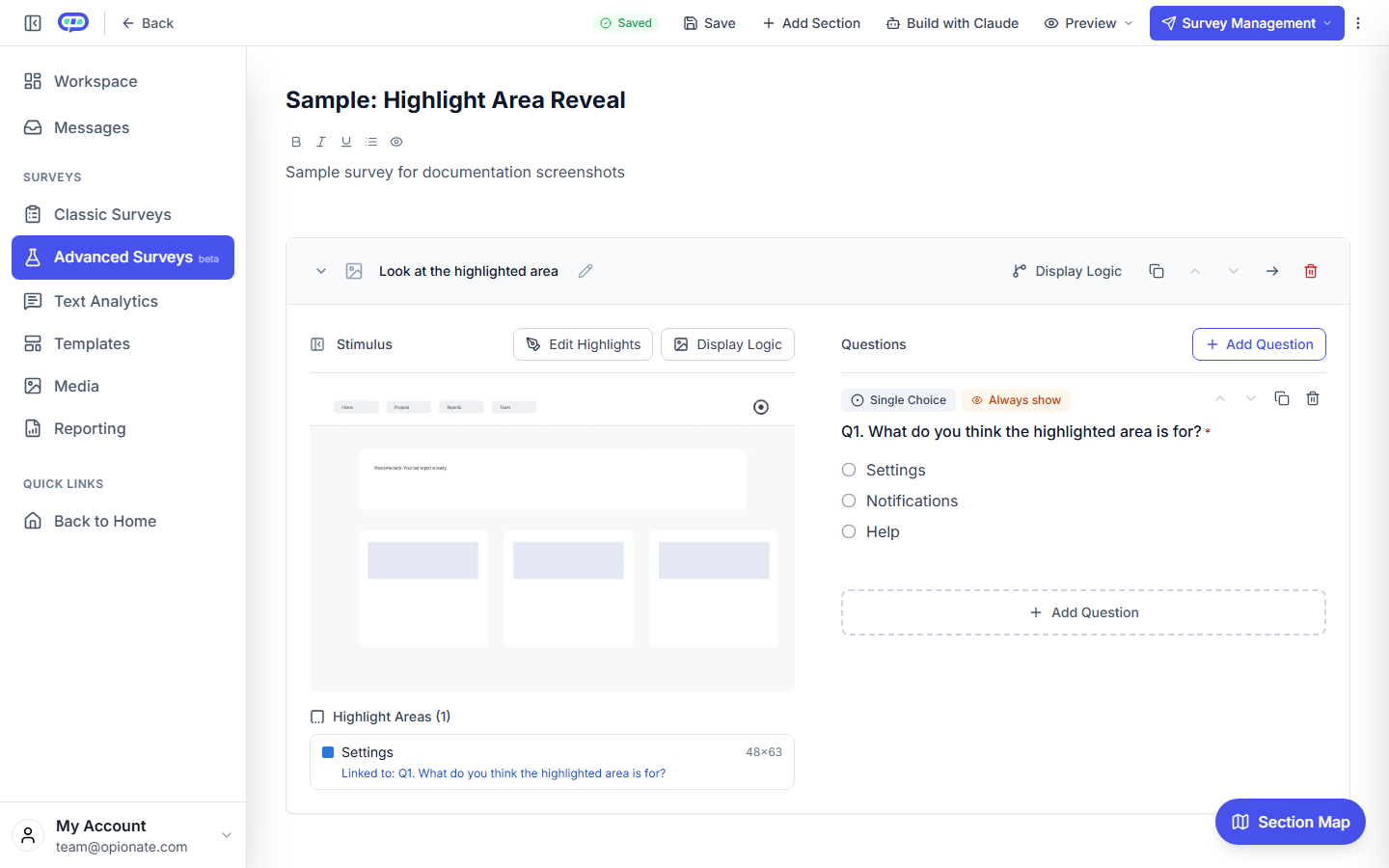
The builder: the Settings highlight is listed under the image and linked to Q1. The screen and question are sample content.
When a respondent reaches the linked question, the rest of the image dims and the highlighted region stands out, with a magnified view of it. Respondents don't draw or click anything.
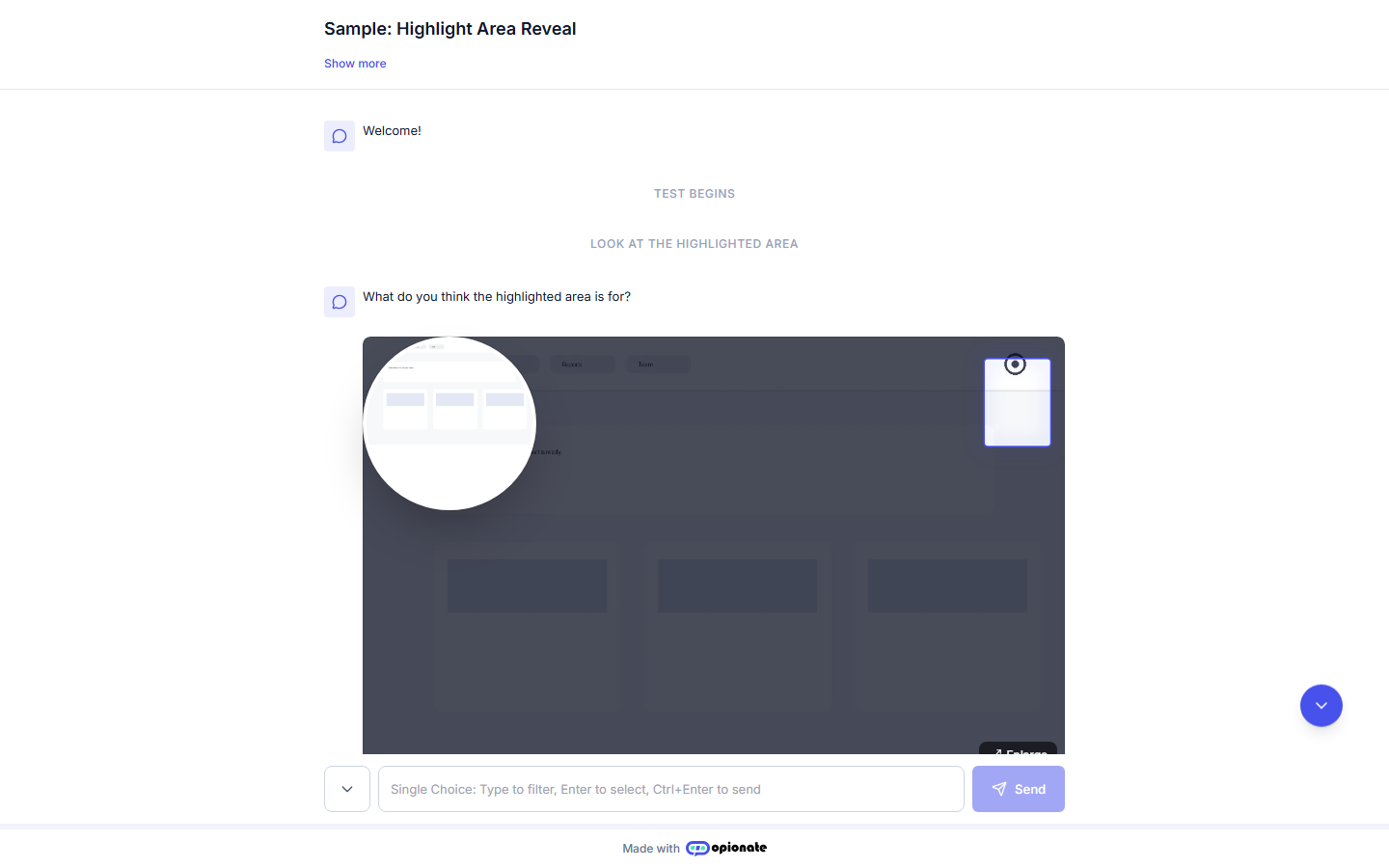
The reveal: the highlighted area is shown automatically when the question appears. The screen is sample content.
Testing More Than One Stimulus
If you're comparing multiple images, videos, or concepts against each other rather than asking about a single one, a Pairwise Comparison section is usually the better fit than several individual Stimuli Testing sections - see Pairwise Comparison Testing: Setting Up a Head-to-Head Tournament, and Choosing Between Plain Questions, Stimuli Testing, Pairwise Comparison, and Sequence Flow for how to decide between them.
FAQ
What file types are supported?
Standard image formats (like JPG and PNG) and standard video formats are supported for upload - check the upload dialog for the current accepted list.
Can I reuse the same image or video across multiple surveys?
Yes - media lives in your Media Library independent of any one survey, so the same asset can be reused across as many surveys as you like without re-uploading.
Is there a limit to how many Stimuli Testing sections I can add to one survey?
There's no fixed cap - you can add as many as your research design calls for.
Does cloning a survey duplicate the underlying media file?
No - cloning a survey or section that references a Media Library asset points at the same underlying file rather than creating a duplicate copy, keeping your library from filling up with redundant copies.
Can respondents interact with the video (pause, replay) before answering?
Standard media playback controls are available to respondents the same way they would be for any embedded video, so they can review it as needed before answering.
Ready to compare more than one stimulus head-to-head instead? See Pairwise Comparison Testing: Setting Up a Head-to-Head Tournament.