
Pairwise Comparison Testing: Setting Up a Head-to-Head Tournament
Ask someone to rate five logo options independently on a scale, and you'll likely get five scores bunched near the top - people are generous when nothing is directly compared. Ask them to pick a winner between two at a time, across every meaningful pairing, and you get an actual forced preference instead of five polite ratings. That's what Pairwise Comparison testing is built for.
Adding a Pairwise Comparison Section
Pairwise Comparison is one of the section types available in an Advanced Survey ("head-to-head"). Add it from the section picker in the survey builder.
Adding Your Items
Upload the images or videos you want compared, or pull them from your Media Library - a Pairwise Comparison section takes between 2 and 12 items in its comparison pool. Respondents will see items from this pool matched against each other, one pair at a time. You can also add a single instructional text block to the section to explain what you're asking respondents to do, though the section itself doesn't support any separately-authored questions - see What You Can't Add below.
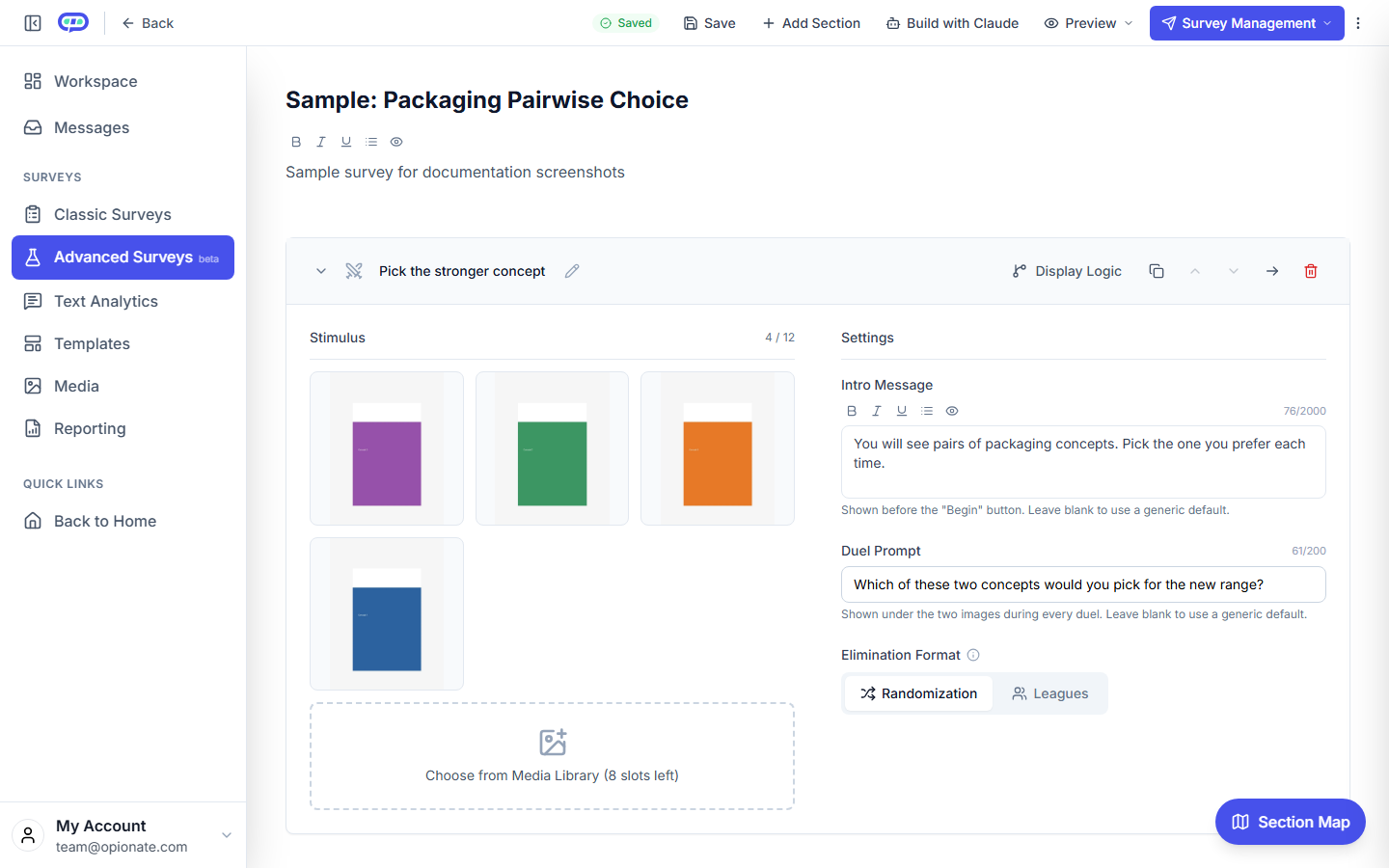
The builder with four sample images, an intro message, a duel prompt, and Randomization selected. The images and text are sample content.
Randomized vs. League-Based
A Pairwise Comparison section is configured as either Randomized or League-based - the two available structures for how matchups are put together. Which one fits depends on your specific research goal and item count; if you're not sure which to pick, previewing your survey under each setting is the fastest way to see how the respondent experience differs before you launch.
How the Tournament Works for Respondents
A respondent sees two items side by side and picks the one they prefer, then moves to the next pair, continuing through a series of head-to-head matchups until the section is complete. This bracket-style flow is what produces a forced choice for every comparison, rather than a single independent rating per item.
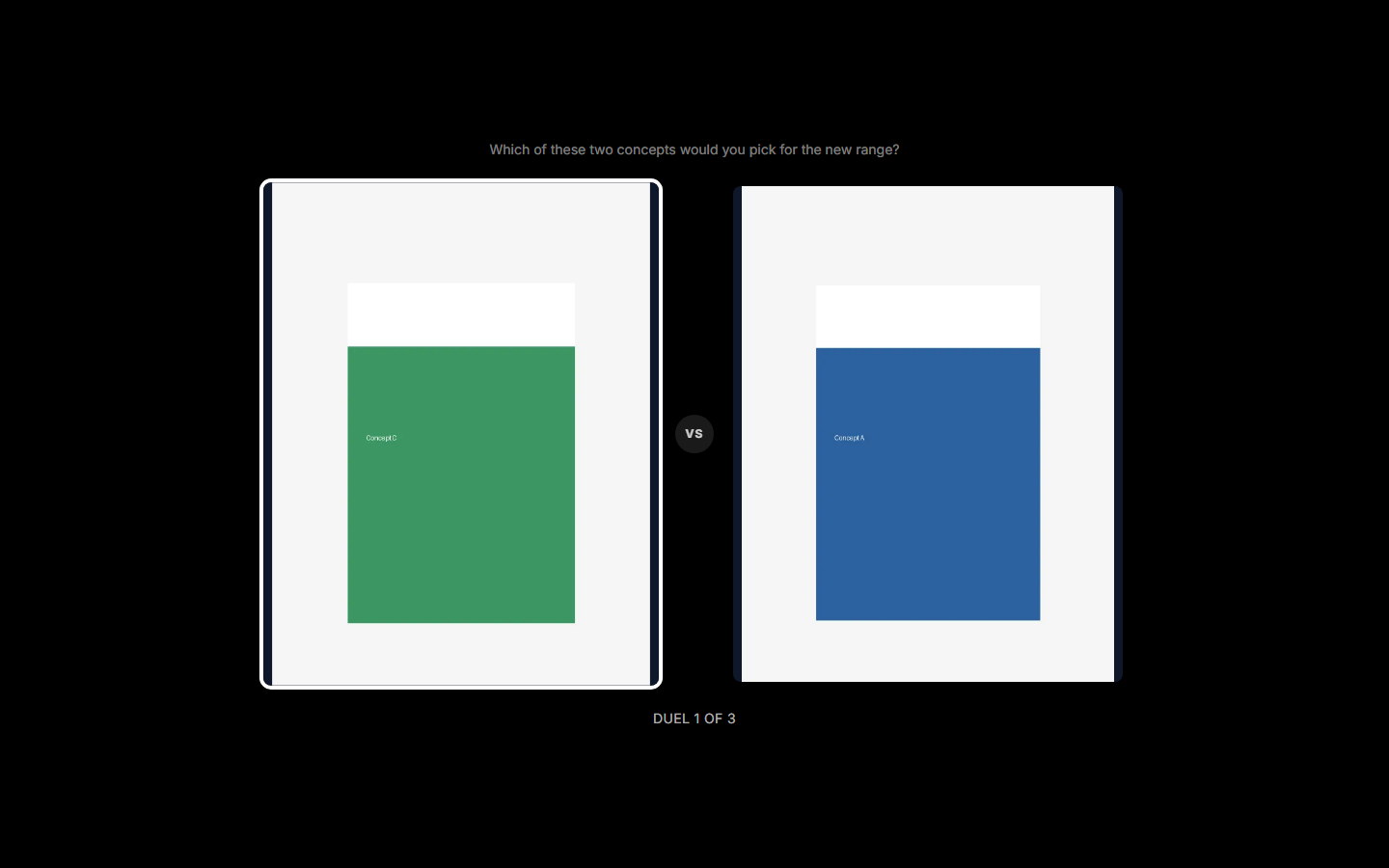
A duel: the prompt above two sample concepts, with the duel count below. The images are sample content.
What You Can't Add
A Pairwise Comparison section doesn't support separately-authored questions inside it - no follow-up question can be attached to a specific matchup or to the section as a whole. The one text element it allows is a single instructional text block (not a question), shown to set up the task rather than to capture an answer. If you need to ask questions about the items themselves, a Stimuli Testing section (see Setting Up Image and Video Stimulus Testing) is the section type built for that.
Reading the Results
Pairwise Comparison results are available as a dedicated widget in Reporting, summarizing how each item performed across all its head-to-head matchups - see Choosing the Right Widget for Your Report for where this fits alongside other chart types.
When to Use This Instead of Stimuli Testing
Reach for Pairwise Comparison when the research question is genuinely comparative - "which of these wins," not "how do people feel about this one thing." If you only have a single image, video, or concept to react to, a Stimuli Testing section (see Setting Up Image and Video Stimulus Testing) is the simpler fit. See Choosing Between Plain Questions, Stimuli Testing, Pairwise Comparison, and Sequence Flow for the fuller comparison across all four section types.
FAQ
How many items can I include in a Pairwise Comparison pool?
Between 2 and 12 items. More items within that range means more possible pairings, which affects how long the section takes a respondent to complete.
Does every respondent see every possible pairing?
That depends on whether the section is set to Randomized or League-based - see Randomized vs. League-Based above. Preview your survey under your chosen setting to see the matchup pattern directly.
Can I mix images and videos in the same comparison pool?
Yes - a comparison pool can include a mix of media types, since respondents are comparing items against each other regardless of format.
Does resume work mid-tournament if a respondent reloads the page?
This is a known exception - reloading mid-tournament returns a respondent to that section's start screen rather than resuming their exact position in the bracket. See How Respondents Resume an In-Progress Survey for details.
Can I add questions alongside the head-to-head comparisons?
No - a Pairwise Comparison section doesn't support separately-authored questions. The only text it carries is a single instructional block explaining the task, not a question with its own answer. See What You Can't Add above.
Next: see Choosing Between Plain Questions, Stimuli Testing, Pairwise Comparison, and Sequence Flow to make sure this is the right section type for your research question.