
Restoring a Previous Version of Your Survey
You changed a question, moved a section, or let an AI assistant add a few questions, and now the draft isn't quite right. You don't need to rebuild it from memory. The builder keeps a version history, and you can go back to any version in it.
This guide covers finding the version you want, reading the confirmation before you commit to it, and the cases where restoring isn't available. For how versions are saved in the first place, see Autosave and Version History: How Opionate Protects Your Work.
Finding the Version
In the builder, click the save badge in the top toolbar. It opens the version history, listing your recent versions from newest to oldest. Each entry shows:
- What changed, such as "Add question" or a section update.
- Who made the change and how. An edit you made in the builder reads "You". An edit made through a connected AI assistant reads "You via Claude".
- When it was saved, shown as a relative time such as "5m ago".
- A Restore button, for that version.
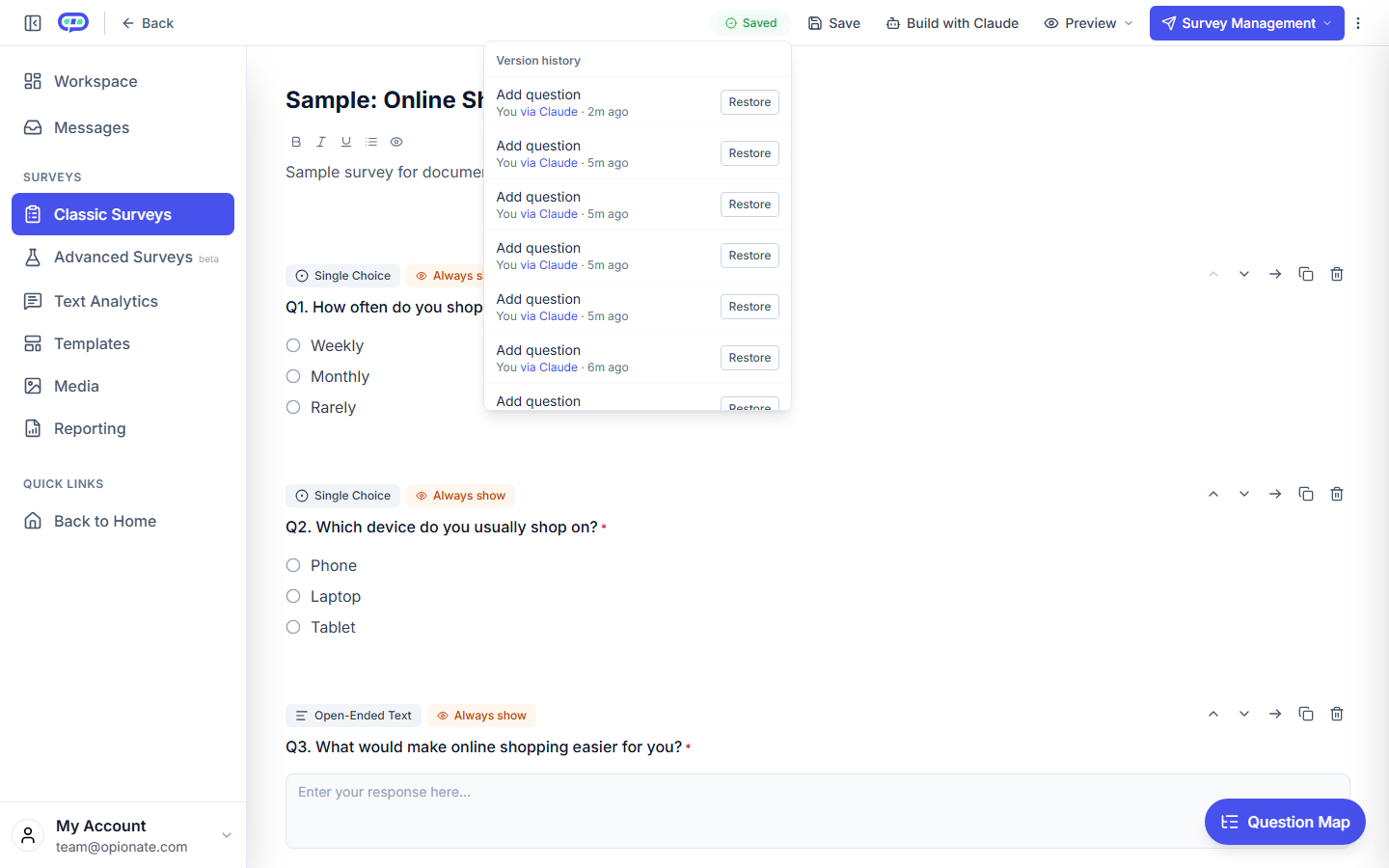
The version history for a sample draft. The survey is sample content.
Reading the Confirmation Before You Restore
Clicking Restore doesn't change anything straight away. It opens a confirmation that lists what restoring would change, compared with the current draft. Each change appears as a line, such as a question that would be removed, added, or edited.
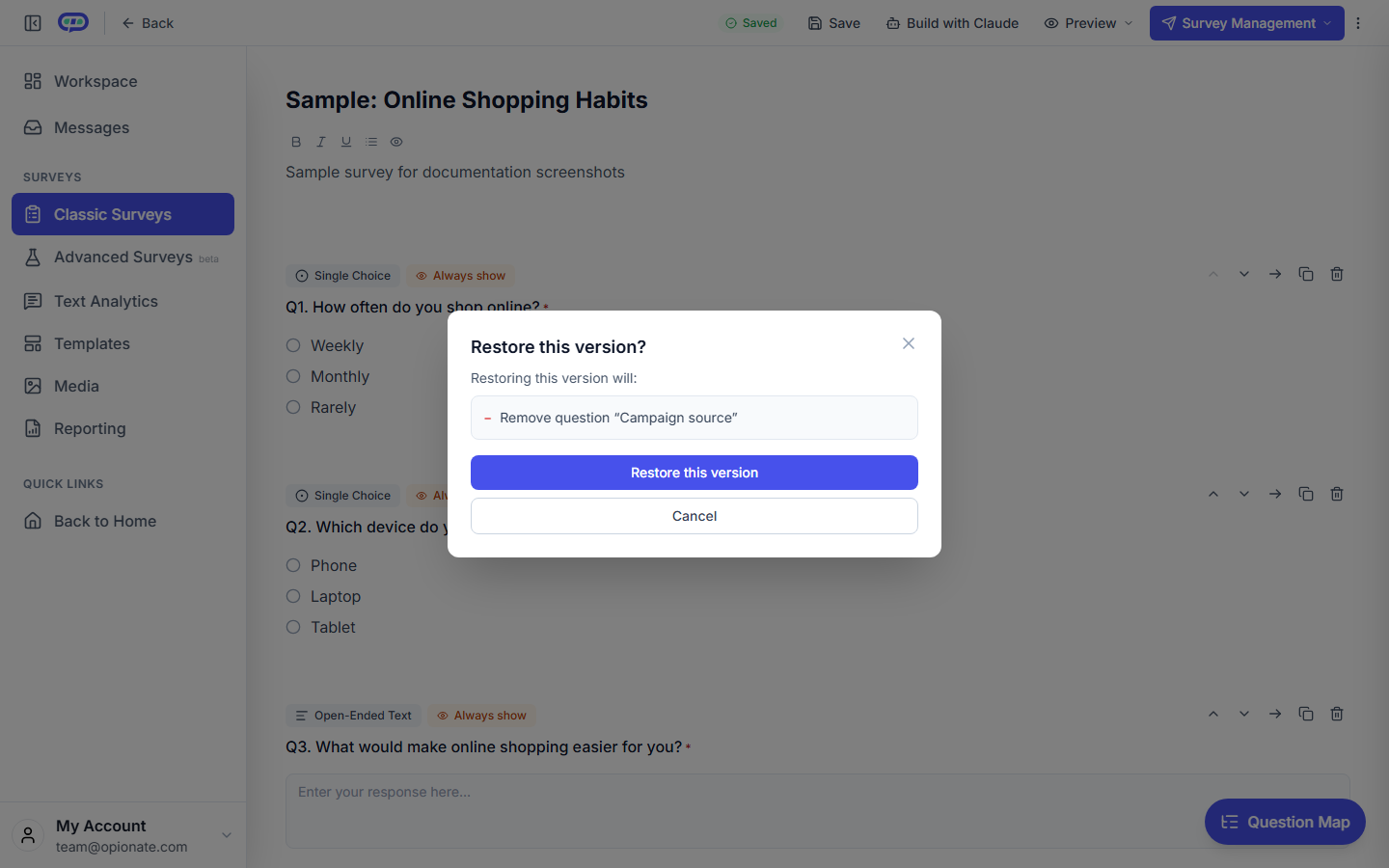
The confirmation for a sample draft. It shows the change in plain language before anything is restored. Choose Cancel to keep the current draft.
Read the list before you confirm. If it shows a question or section you want to keep, cancel and check the version above it instead.
What Gets Restored
A restore brings back the version's questions, sections, and settings, together with its title and description. For an Advanced Survey, the section setup comes back with the questions, so a section and its images or options stay consistent with the questions around them.
Some very old versions can't be restored at all. For an Advanced Survey, a version saved before section restore was added isn't available for restore. If the Restore button for an entry shows an error, choose a more recent version.
When Restoring Isn't Available
Once a survey is published, its version history is cleared. This is deliberate. A published survey may already have responses tied to its current questions and options, so restoring an older draft state could break the link between those answers and the questions they answer. If you publish and then want to change the survey, those changes start a new history.
The history holds a limited number of versions. Opionate keeps up to 50 versions per survey and removes the oldest once that limit is reached. It's a safety net for active editing, not a permanent record, so a version from much earlier may no longer be there.
When an AI Assistant Restores a Version
If you ask Claude to revert a change, it's designed to describe what the restore would do first and wait for your approval before applying it. The builder's confirmation works the same way: you see the change before it happens.
FAQ
Can I restore a version after the survey is published?
No. Version history is cleared at publishing, so there's nothing to restore from. Make changes to a published survey as a new draft.
Will restoring delete the responses I already have?
Restoring only changes the draft's questions and settings. Responses that came in on a published survey aren't part of the draft history, and they aren't changed by a restore.
What if I restore the wrong version?
Check the version history again. Each entry is listed in order, so you can pick the version you actually want before you confirm.
Why does the confirmation sometimes show more changes than I expected?
It lists every difference between the version and the current draft, including changes from earlier edits you may have forgotten. Read the whole list before you confirm.