
Referencing Your Media Library with Claude
Building a Stimulus or Pairwise Comparison section usually means pulling in images or videos you've already uploaded to your Media Library (see Introduction to the Media Library if you're not familiar with it yet). Once Claude is connected via Opionate's authenticated MCP connector, it can help with the "find and reference" half of that - just not the uploading itself.
What Claude Can Do
- Browse your existing assets. Ask Claude to list what's in your Media Library, optionally narrowed by name or type.
- Show you visual thumbnails. This isn't just a list of filenames - Claude can pull back an actual small preview image, so you can visually confirm "yes, that's the one" before it gets used in a survey.
- Reference an asset while building a section. Once you've confirmed which image you mean, Claude can attach it to a Pairwise Comparison pool or a Stimulus section directly, as part of the same conversation where you're drafting that section.
- Point you to the upload page. If the image you need isn't in your library yet, Claude can hand you a direct link to the Media Library's upload page.
A typical flow: "What product photos do I have in my library from the packaging redesign?" - Claude lists them with thumbnails - "use the second and third ones in a new Pairwise Comparison section."
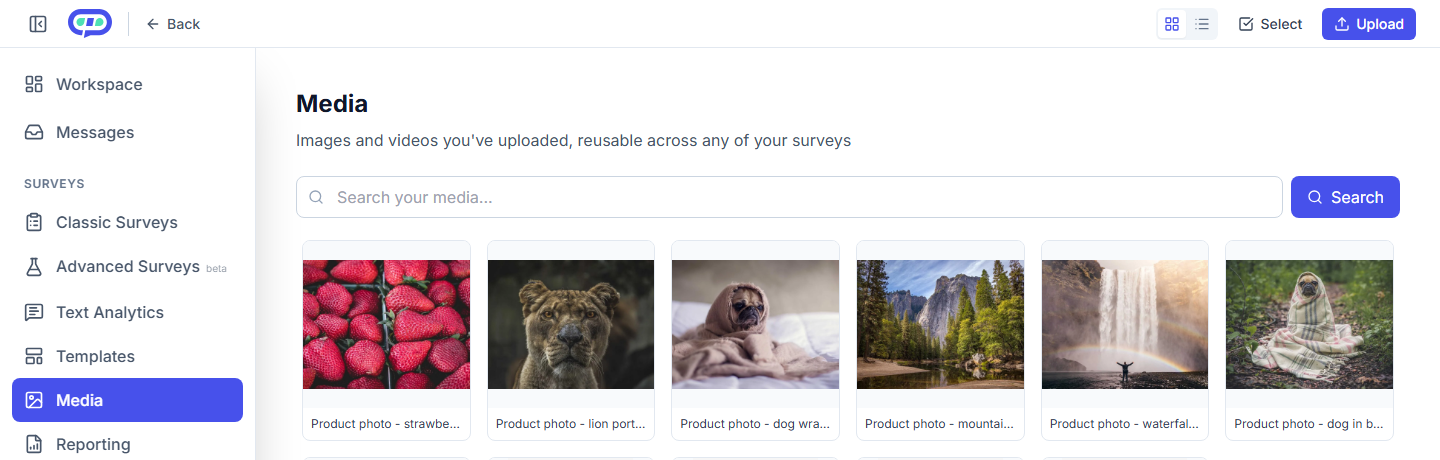
Your Media Library, as Claude sees it when asked to browse or reference an existing asset.
What Claude Can't Do: Upload
This is deliberate, not a gap we haven't gotten to yet. An earlier version of this connector could accept an image and upload it directly - we shipped it, tested it against real files, and rolled it back after finding the entire approach was uneconomical, not just occasionally unreliable. Relaying real image bytes through a conversational tool call requires the AI to regenerate the whole file as part of its own response, and even a small image took several minutes end-to-end regardless of how the transfer was broken into pieces.
Instead, a brand-new image gets uploaded the same way it always has: directly through the Media Library or the survey builder's own upload dialog, which is fast and reliable because it's a normal file upload, not something routed through an AI's output.
FAQ
Can Claude tell me if an image is already used somewhere else?
Ask it - Claude can look at your existing Media Library assets and the surveys you ask about, though it won't proactively surface this unless you ask.
Does browsing my Media Library through Claude cost credits?
No - browsing, viewing thumbnails, and referencing existing assets aren't credit-based actions.
If I upload an image myself mid-conversation, does Claude see it right away?
Yes - ask Claude to check your Media Library again and it will see whatever is currently there, including anything you just uploaded yourself.
Will AI-driven upload ever come back?
Not unless the underlying constraint changes - this was tested seriously, not casually deprioritized. If you're curious why, the short version is above; the technical reason isn't specific to any one image size or format.
Want to see the bigger picture of what an AI assistant can and can't do on Opionate? Revisit Connecting Opionate to Claude via MCP.