
Passing Data into Your Survey with Hidden Fields
You already know which campaign a respondent came from, which panel sent them, or which customer segment they belong to - it's sitting right there in the link they clicked. Asking them to type it in anyway, as its own survey question, is redundant at best and a source of bad data at worst: people mistype campaign codes, skip a question they don't think applies to them, or just guess. A Hidden Field question skips that step entirely - it reads the value straight out of the link itself and stores it as part of the response, with nothing shown to the respondent at all.
What a Hidden Field Actually Does
A Hidden Field is a question type that never appears to respondents - no chat bubble, no input box, nothing to answer. Instead, at the moment someone opens the survey, it reads a named parameter directly from the survey link's own URL and stores whatever value it finds as that question's answer. If the parameter isn't present in the link - someone opened the plain survey URL directly, say - it falls back to a default value you configure instead, if you've set one. If neither the URL nor a default supplies a value, nothing is captured for that respondent; it isn't forced to some placeholder.
This happens once, right at the start of the survey, for every Hidden Field question in it - not per-question, since there's no "turn" for a question nobody ever sees. That also means the captured value is available to your survey's Display Logic from the very first question, regardless of where in your question list the Hidden Field itself happens to sit.
Setting One Up
- Add a Hidden Field question to your survey, anywhere in your question list - its position doesn't affect when it captures its value, since that happens at survey start regardless.
- Set the URL parameter name. This is the exact query parameter key the survey link needs to carry - for example, setting it to
sourcemeans the field looks for?source=...in whatever link a respondent actually clicks. - Set a default value, if you want a fallback. Anyone who opens the survey through a link that doesn't include your parameter (or opens it directly) gets this value instead, if one is set. Leave it blank if you'd rather capture nothing than capture a wrong guess.
- Build your links with the parameter included. Whatever you're using to distribute the survey - an email campaign, a panel invitation, a QR code - needs to append the matching query parameter to the survey URL for the value to actually flow through:
https://yoursurvey.example/?source=email_campaign_march.
The editor shows the URL parameter name, the default value, and an example link:
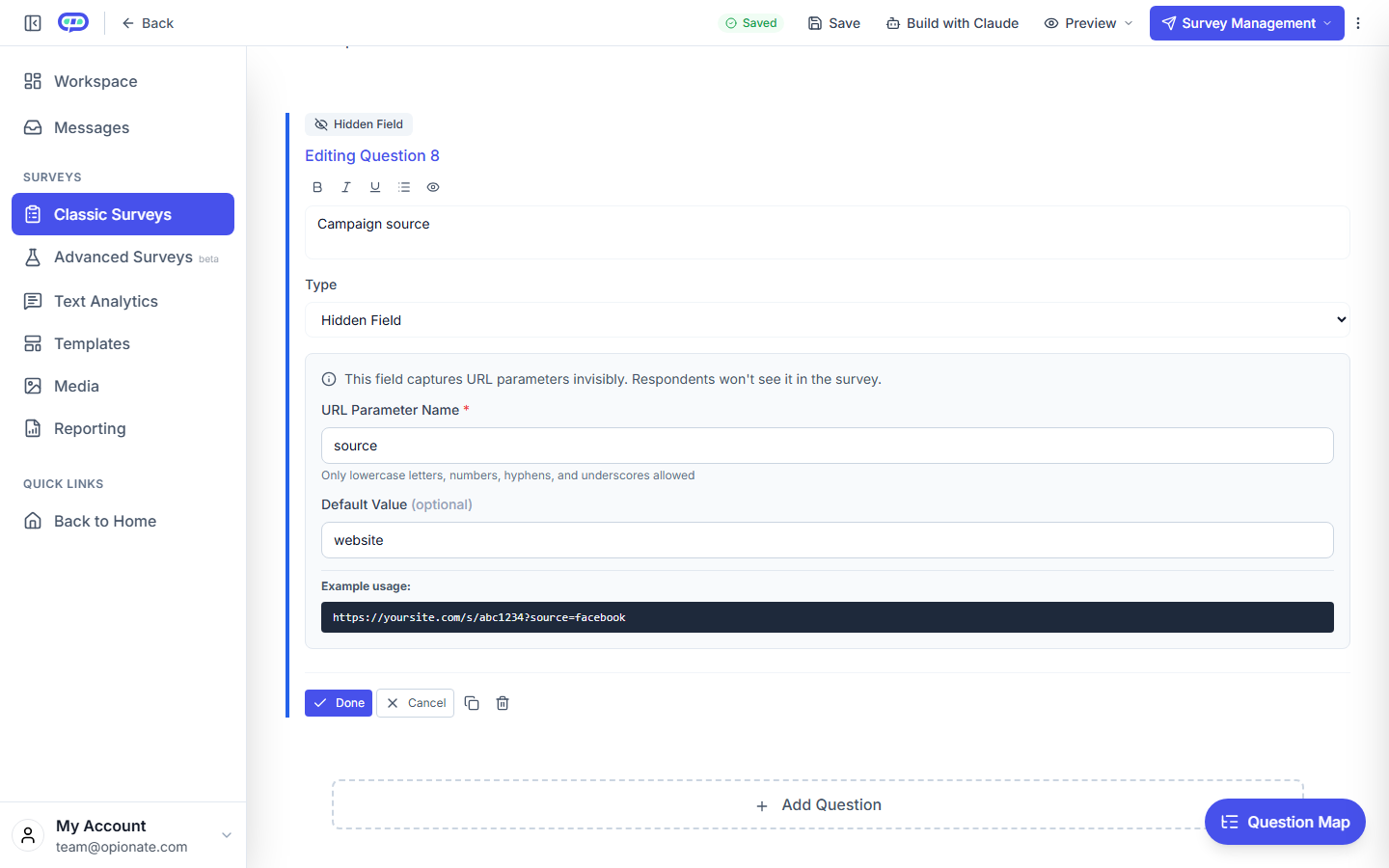
The Hidden Field editor for a sample campaign-source question. Respondents never see this question. The parameter name and default are sample settings.
What to Use It For
Campaign or channel tracking. Append a different value to the link you distribute through each channel - email, social, in-app - and every response comes back already tagged with where it came from, ready to filter or cross-tab by source without asking respondents to self-report something they'd likely get wrong anyway.
Panel or respondent ID passthrough. If you're recruiting through a panel provider or an external list, a unique respondent identifier can ride along in the link and land directly in your response data - useful for matching survey answers back to records in whatever system generated the invitations, without asking the respondent to type in an ID they were never going to copy correctly.
Feeding display logic. Because the captured value is available from the very first question, you can route respondents differently based on it - showing a different opening question to someone who came from a specific campaign, for instance - without that routing depending on the respondent having answered anything yet.
Best Practices
- Keep the parameter name simple and URL-safe. Stick to letters, numbers, and underscores - avoid spaces or special characters that might get mangled when a link is copied, shortened, or pasted into an email client.
- Set a default value when a missing value would break something downstream. If a piece of display logic depends on this field, a sensible default avoids that logic silently falling through in a way you didn't intend for respondents who arrive without the parameter set.
- Don't rely on it for anything you can't verify. A URL parameter is only as trustworthy as the link it arrived on - fine for tracking and routing, not something to treat as a verified identity claim.
- Test with the actual link you'll distribute, not just the plain preview URL, since a Hidden Field has nothing to show you in preview mode if the parameter isn't present in the link you're previewing with.
FAQ
Does the respondent see anything related to a Hidden Field question?
No - it never appears in the chat, mobile, or Traditional taking experience. It's captured silently at survey start.
What happens if the URL parameter isn't in the link and I haven't set a default?
Nothing is captured for that respondent - the field is simply left blank in their response, rather than filled with a placeholder.
Can I use more than one Hidden Field in the same survey?
Yes - each one captures its own named parameter independently.
Does a Hidden Field support display logic or AI follow-up, like a normal question would?
No - since it's never shown to a respondent, there's no display condition or follow-up to attach to it directly. Its captured value can still be used as the condition for display logic on other questions, though.
Can I change the URL parameter name after the survey has already collected responses?
You can, but existing responses keep whatever was captured under the old parameter name - changing it only affects new responses going forward, so it's best decided before you start distributing links widely.