
How to Save a Survey as a Reusable Template
You've spent an hour getting a customer feedback survey exactly right - the question order, the display logic, the follow-up prompts that only show up when someone leaves a low score. Next quarter, you'll need to run the same structure again with a fresh batch of respondents. The obvious shortcut - duplicating the old survey and clearing out its responses - technically works, but it drags the old survey's full history along for the ride and leaves you hunting through your survey list for "the good one" every time you need it again.
Saving a survey as a template solves this properly: it captures the structure on its own, with nothing tying it back to the original survey's responses or history, ready to start fresh from whenever you need it.
What Actually Gets Saved
A template is a self-contained snapshot of a survey's content, taken at the moment you save it. That's a deliberate design choice: once saved, a template has no live connection back to the survey it came from. Editing the original survey afterward, or even deleting it entirely, never touches a template you already saved from it - what's in the template is what's in the template, permanently, from the moment you saved it.
Both of Opionate's survey types can be saved as a template:
- A Classic Survey - your questions, sections, and display logic - saves and becomes available instantly.
- An Advanced Survey - including any Stimulus Sections, Pairwise Comparison sections, or Sequence Flow sections it contains - saves in the background, since copying the underlying media files takes a moment longer than a text-only survey does. You'll see a brief "preparing" step before it's ready.
How to Save One
- Find the "Save as Template" action - available from your survey list, or from inside the survey builder's own toolbar.
- Name it. This is what shows up in your "My Templates" list, so make it something you (or a teammate) will recognize months from now, not just "Copy of Q3 Survey."
- Add categories, if useful. This is a freeform, comma-separated field - type whatever tags make sense to you ("Customer Feedback," "Onboarding," or anything else), and they'll be available to filter by later. There's no fixed list to pick from; you're free to coin your own.
- Save. A Classic Survey template is ready immediately. An Advanced Survey template finishes in the background - give it a moment if it includes images or video.
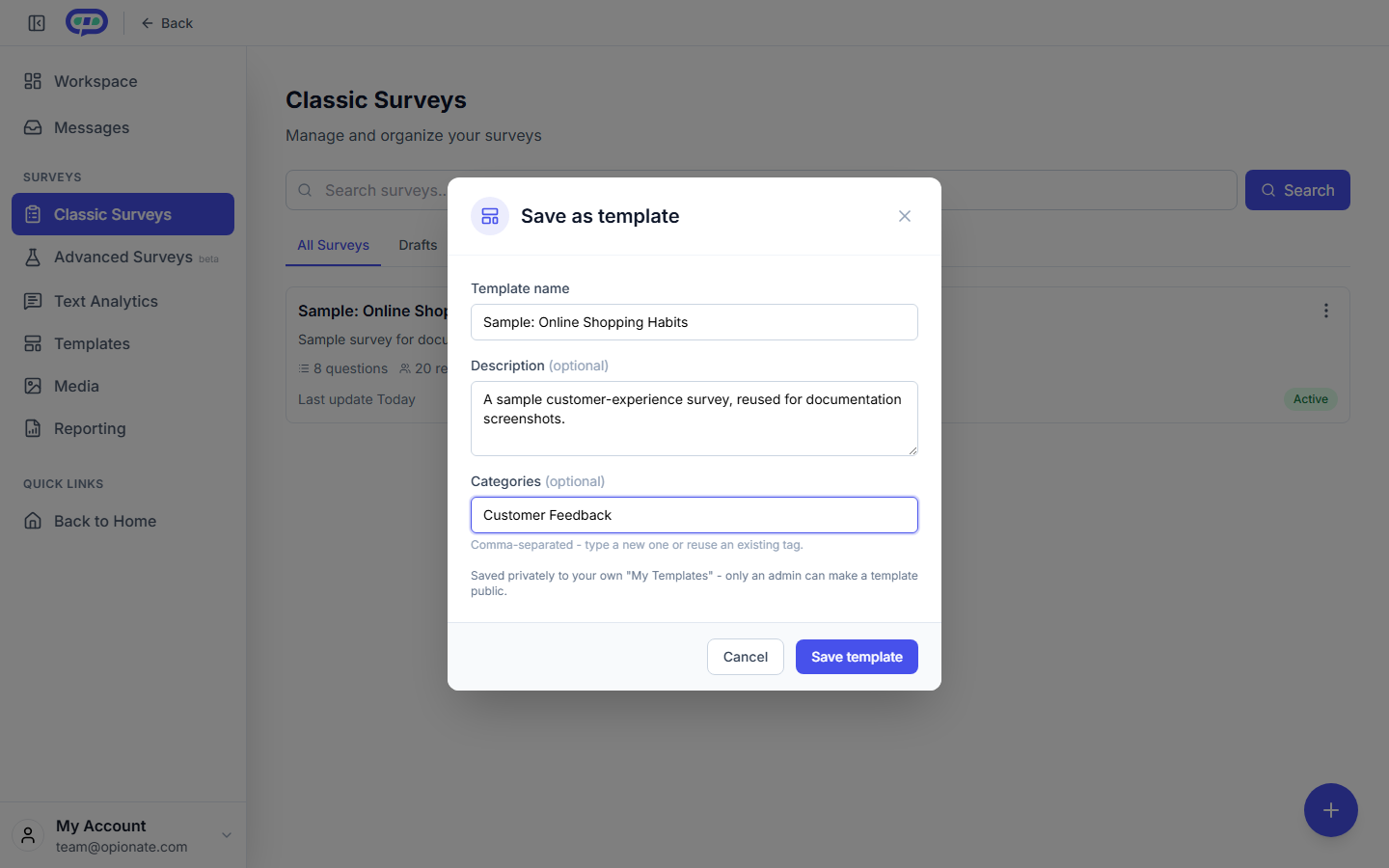
The Save as Template modal for a sample survey. Saved templates are private by default. The name, description, and category are sample content.
Your new template appears under My Templates in the template gallery, private to you by default.
Who Can See It
Every template you save is private to your own account unless a staff member specifically promotes it to the public gallery - there's no self-service way to make your own template public, and nothing you save is ever visible to other users by default. If you're on a team and want a template available to teammates, that's a separate conversation with your account admin, not a setting you'll find in the Save as Template modal itself.
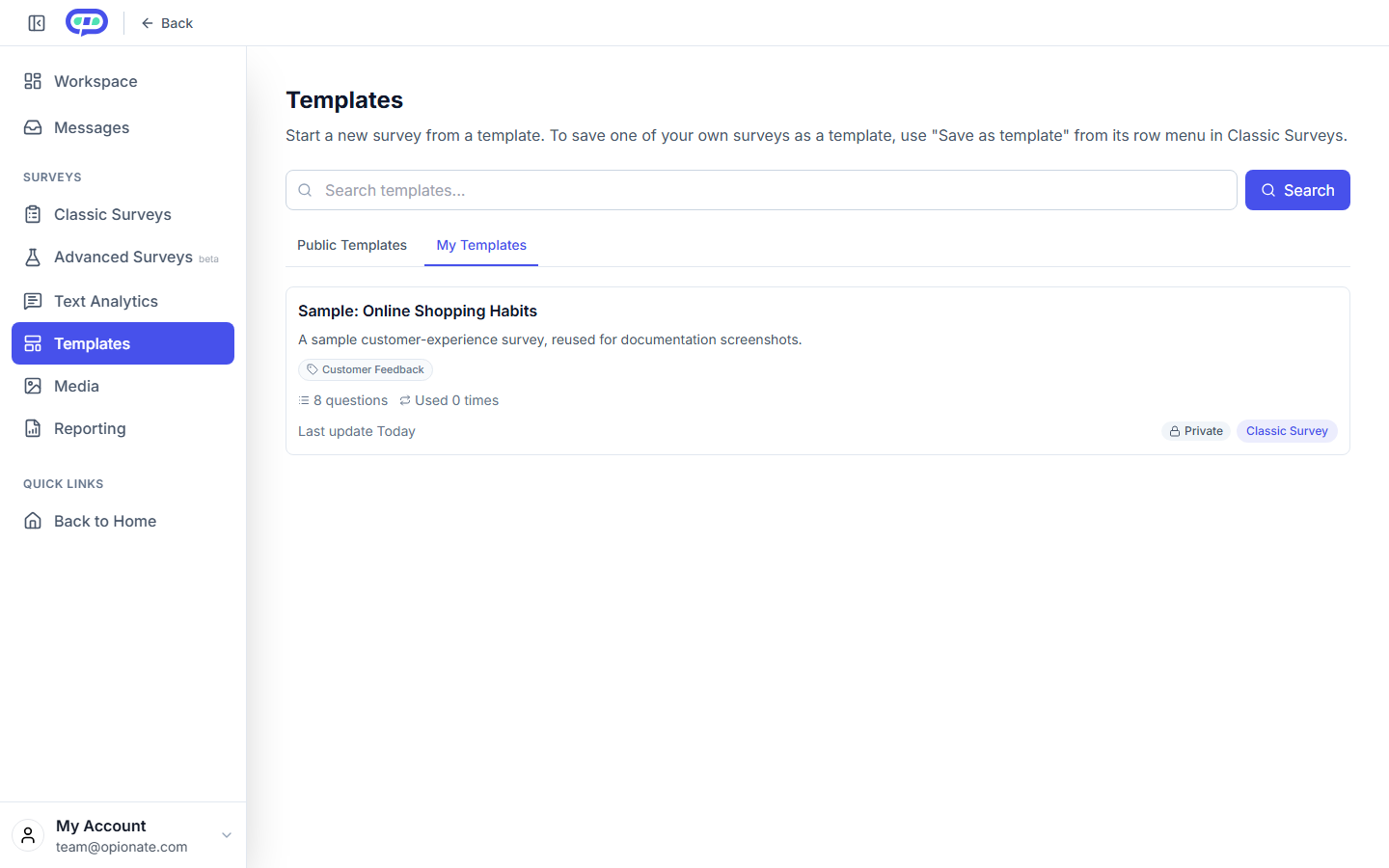
A saved template under My Templates, marked Private. The survey and its description are sample content.
Saving a Template vs. Sharing a Survey Directly
It's worth being precise here, because these solve two different problems that sound similar:
Sharing a survey directly with another user (via a clone request) hands a specific teammate a working copy of one specific survey, including its responses and classification work if you choose - built for "let my colleague pick up exactly where I left off on this one survey."
Saving a survey as a template creates a reusable starting point stripped of all responses and history, meant to be used over and over by you (or, once public, anyone) as the seed for brand-new surveys - built for "I want to reuse this structure repeatedly," not "I want to hand off this specific study."
If you need a teammate to continue the exact study you're running, share the survey directly. If you're building something you or your team will want to start from again and again, save it as a template.
Best Practices
- Save the template after you've finished designing, not while you're still iterating. A template is a snapshot - if you keep refining the original survey afterward, none of those changes carry over into a template you already saved.
- Use categories consistently. Since categories are freeform, a little discipline (always using "Onboarding" rather than sometimes "onboarding," sometimes "New User Flow") makes your own template library much easier to filter later.
- Name templates for the pattern, not the instance. "Quarterly NPS Check-In" ages better than "NPS Survey - Q3 2026."
FAQ
Does saving a survey as a template affect the original survey?
No - saving a template only reads the survey's current content to build the snapshot. The original survey, its responses, and its settings are completely untouched.
Can I edit a template after saving it?
Yes - open it from your My Templates list to update its name, description, or categories. The underlying snapshot itself reflects whatever the survey looked like at the moment you saved it; editing the template's metadata doesn't re-pull from the live survey.
Does an Advanced Survey template keep its images and video?
Yes - an Advanced Survey template's snapshot includes the media it was built with.
Can I make my own template public?
Not directly - only a staff member can promote a template into the public gallery. Every template you save stays private to your account otherwise.
Does saving a template count against anything - credits, storage limits?
Saving a template doesn't consume credits. It's a structural copy of your survey's content.
Ready to build a library of your own reusable formats? Start from Starting a Survey from the Template Gallery, or head to your survey list and try Save as Template on a survey you already have.