
Connect Claude or ChatGPT to Build Survey Drafts
Typing out a 15-question survey one question at a time works, but it's not the fastest way to get from an idea to a working draft. If you already use Claude or ChatGPT to think through a project, you can now hand it the actual work of building the survey too - describe what you're trying to learn, and let it create and refine the questions directly in your Opionate account.
This connects through MCP (Model Context Protocol), an open standard that lets AI assistants talk to a product's real data instead of guessing at it from a screenshot or a copy-pasted question list.
What It Can and Can't Do
To keep this predictable, the connection is scoped narrowly on purpose.
It can:
- Create a new survey draft from a description of what you're testing
- Add, edit, delete, and reorder questions in a draft you own
- Read back any of your existing drafts, so it can pick up an in-progress survey and keep working on it
- Undo its own recent changes if an edit didn't turn out the way you wanted
It can't:
- Publish a survey, or make it live to respondents
- Launch or manage panel recruitment
- View responses, dashboards, or any other account data
- Touch a survey it didn't create or that isn't yours
Every draft it produces still goes through the same validation Opionate applies anywhere else - question limits, required fields, and the same business rules the in-app "Generate with AI" button uses. It can't save something the workspace builder itself would reject.
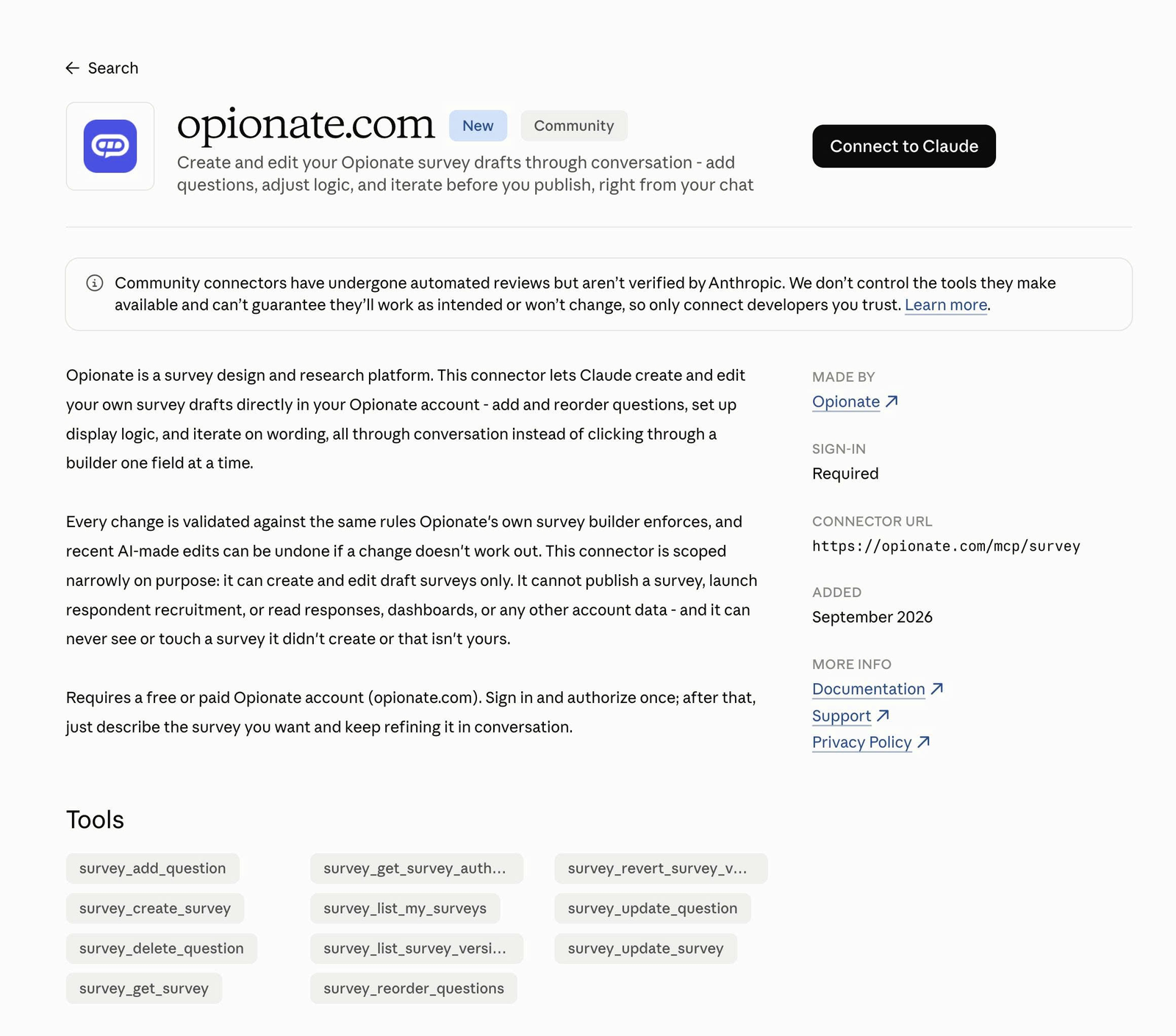
What you’ll see once you find the connector - sign-in required, and the Tools panel lists exactly what it can do.
How to Connect It
The fast way - from inside a survey: open any survey in the Classic or Advanced Survey Builder and click Build with Claude in the toolbar. If you haven't connected the Opionate connector yet, it walks you to Claude's connector directory to add it; once you have, the button opens a new Claude chat already primed with that exact survey, so you can start describing changes right away instead of typing out which survey you mean.
From Claude or ChatGPT directly - works even before you have a survey open, and is the only option for ChatGPT or any other MCP-compatible client:
- In Claude or ChatGPT, open the place your assistant lists connectors (in Claude, this is Settings > Connectors; in ChatGPT, it's under connected apps).
- Add a connector and point it at:
https://opionate.com/mcp/survey/ - Sign in and authorize. You'll be taken to a normal Opionate login screen, then a consent screen asking you to allow the connection. This is the same account you already use to log in to the workspace - there's no separate API key or developer setup.
- Start a conversation. Once connected, just describe what you want: "Create a 10-question customer satisfaction survey for a coffee subscription box" is enough to get a first draft going.
That's it. Nothing needs to be installed, and nothing needs to be configured inside Opionate itself first.
Working With It Over a Conversation
Because the assistant can read a draft back before editing it, this works well as an ongoing back-and-forth rather than a single one-shot request:
- "Add a follow-up question after the satisfaction rating, but only show it if someone rates below 3."
- "Reorder the demographic questions to the end."
- "That last change to question 4 didn't look right - undo it."
- "Show me every question in this draft so I can check the wording."
Each edit is saved immediately to the draft, so you can jump into the Opionate workspace at any point mid-conversation and see exactly what's there - or finish the last few adjustments yourself in the builder.
Undoing a Change
Every edit made through an AI assistant is kept as a recent version you can revert to, specifically so an unwanted change is never a rebuild-from-scratch problem - just ask your assistant to undo it, and it can restore the draft to how it looked before. This history is only for edits made this way; once you publish a survey, its AI-editing history is cleared, since a live survey's questions and answer options are already tied to real responses at that point.
FAQ
I'm already looking at a survey in the builder - is there a faster way in?
Yes. Click Build with Claude in the builder toolbar. If the connector's already set up, it opens a new Claude chat primed with that survey so you can just start talking; if not, it points you to Claude's connector directory first, then you're one click from the same thing.
Does this cost credits?
No - creating or editing a draft this way doesn't use credits. Credits are only involved later, at publish.
Can it see my other surveys, responses, or reports?
No. It only has access to survey drafts, and only the ones tied to your own account - never another user's data, and never response or analytics data of any kind.
Can I keep editing a draft it started in the regular workspace builder?
Yes. A draft it creates or edits is a completely normal survey in your account - open it in the builder any time, and any further changes it makes will show up there too.
Does it work with ChatGPT the same way as Claude?
Yes - the connection point is the same MCP server for either assistant, or any other MCP-compatible client. The setup screens will look slightly different since that's controlled by each assistant's own app, but the connection itself works the same way.
What if I don't want it to touch a particular survey?
It can only reach drafts - anything already published is completely out of its reach by design, so publishing a survey is itself the way to put it out of AI-editing range.
Ready to try it? Connect Claude or ChatGPT using the steps above, and start your next survey with a conversation instead of a blank builder.